In three weeks, our team developed a product detail page for clothing products. The page allows users to look at specific details of a selected product, compare related items, save items to an outfit list, ask and answer questions about the product, and read and write reviews.
Product overview consists of two components, which are main image gallery and product detail information.
The gallery will display the current selected thumbnail, and the users are allowed to click a backwards and forward button to view the next or previous product image that is specific to the selected style. Users can click the main image to enter into an expanded view, and click the image again to view the image with a 2.5X zoom. The button that on the top right corner of the gallery can either bring users to the expanded view or back to the default view.
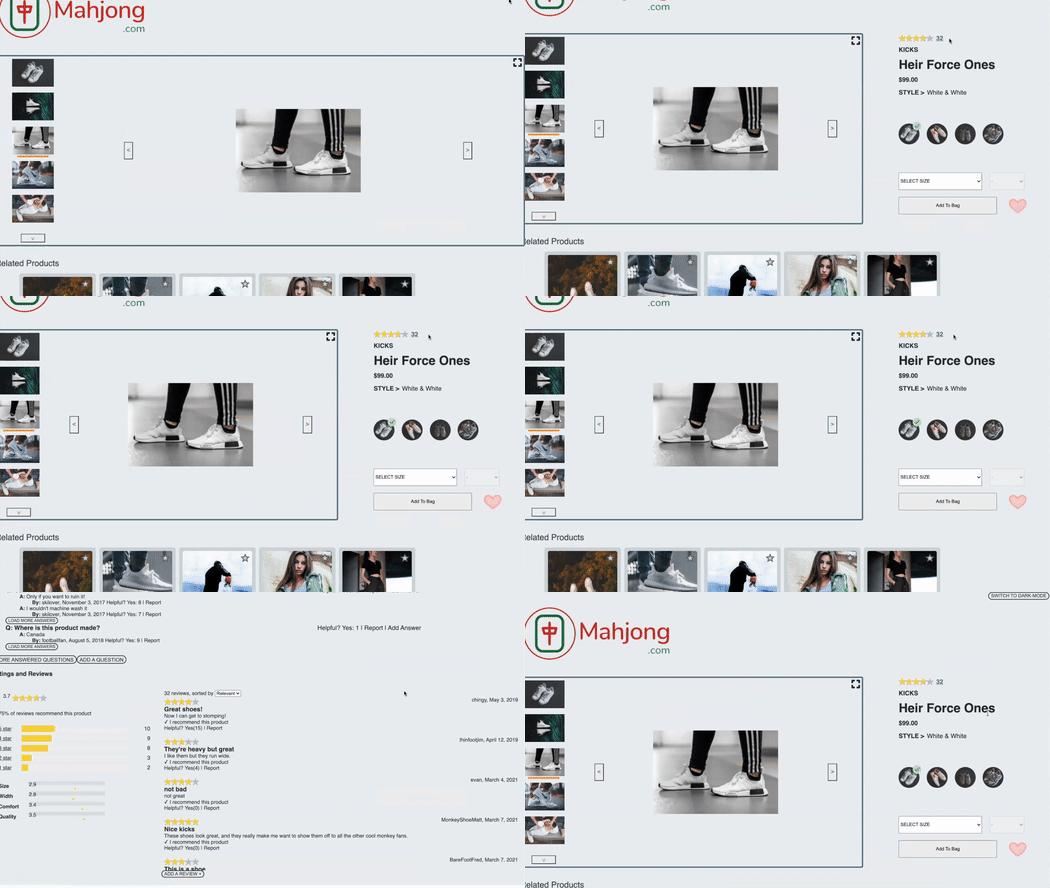
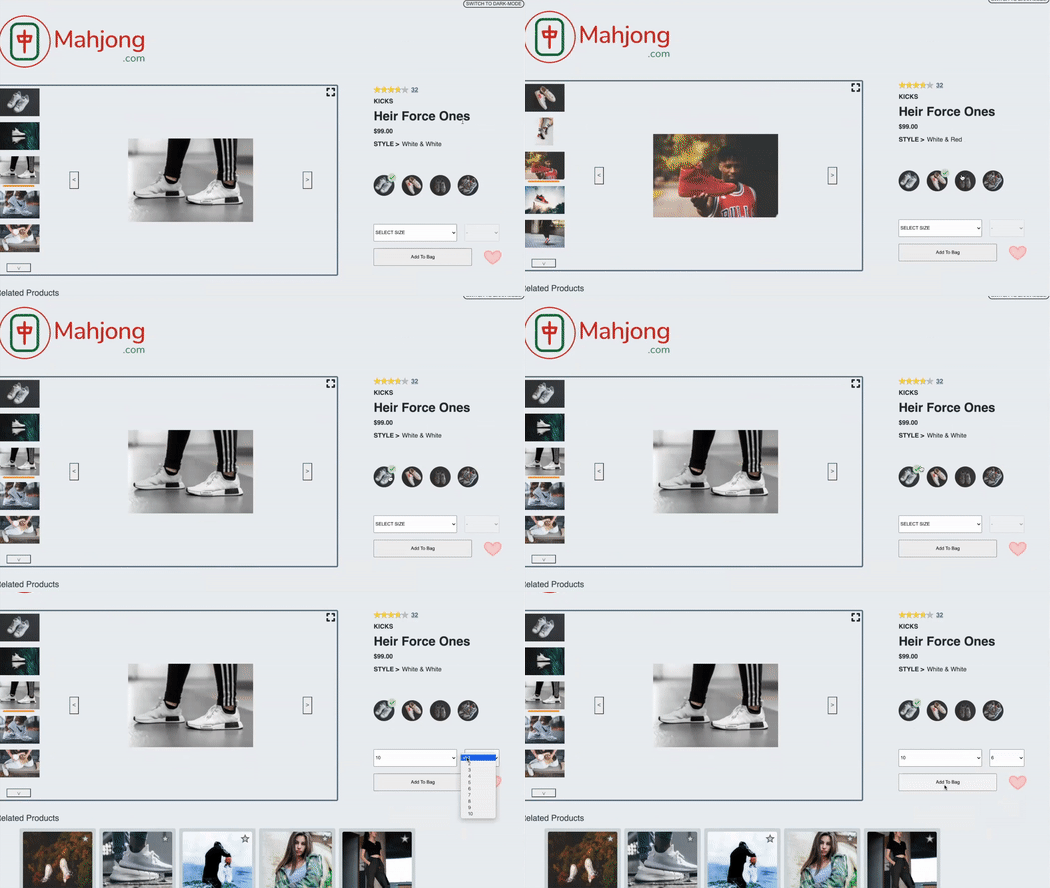
To the side is the product detail information, which lists the current selected product's name, category, average ratings, and number of reviews. Clicking reviews will take users to the ratings and reviews widget of the page. The product price is based on the currently selected style. If the product is on sale, the sale price will appear in red, followed by the original price which is struckthrough. The styles that are available to the product are displayed as thumbnails for users to toggle between. Once the selected style changes, the main gallery, style name and product price updates. Below the style selector, users can select product size and quantity with two dropdown lists. An "Add to Cart" button will save the selected product to the cart. Users are also able to add the current product to their outfit list (described below) by clicking a heart icon.
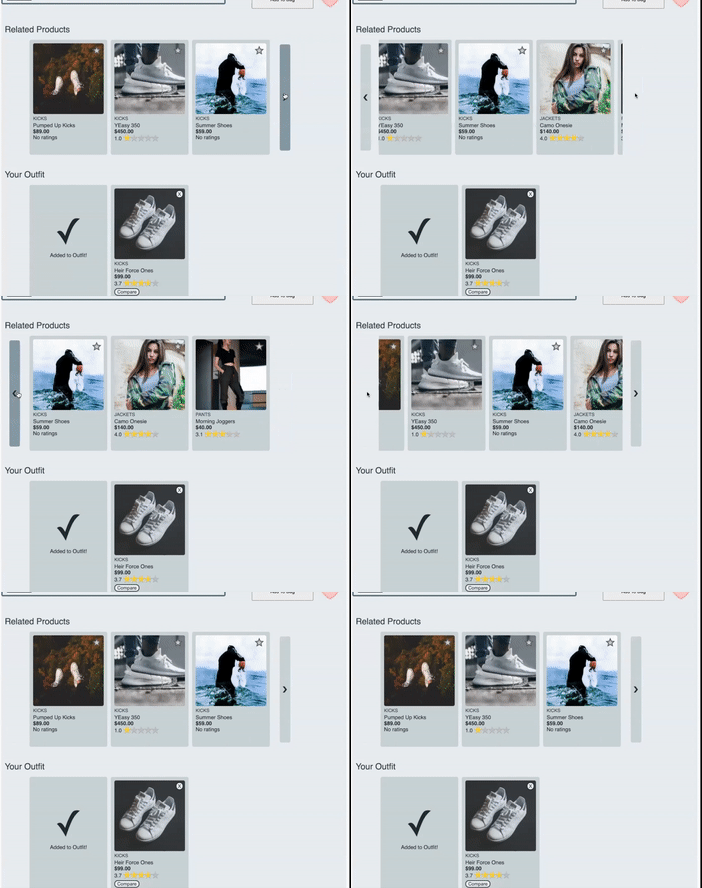
Two carousels appear under the product overview section. The first lists products related to that of the current page. The second lists those added by the user to create a custom outfit. Depending on screen size, each carousel scrolls horizontally according to left and right buttons on either side of it. In both lists, each product is displayed as a "card", which presents basic information about it to the user: default image, category, name, price, and overall rating. The user can navigate to the product detail page for any of these items by clicking on the card.
In the related products carousel, each card has a star icon positioned in the top right, which, on click, will open a comparison popup window, comparing the features of the current page's product, and those of the related item. In the outfit carousel, the same popup window will appear upon clicking a "Compare" button at the bottom of the card.
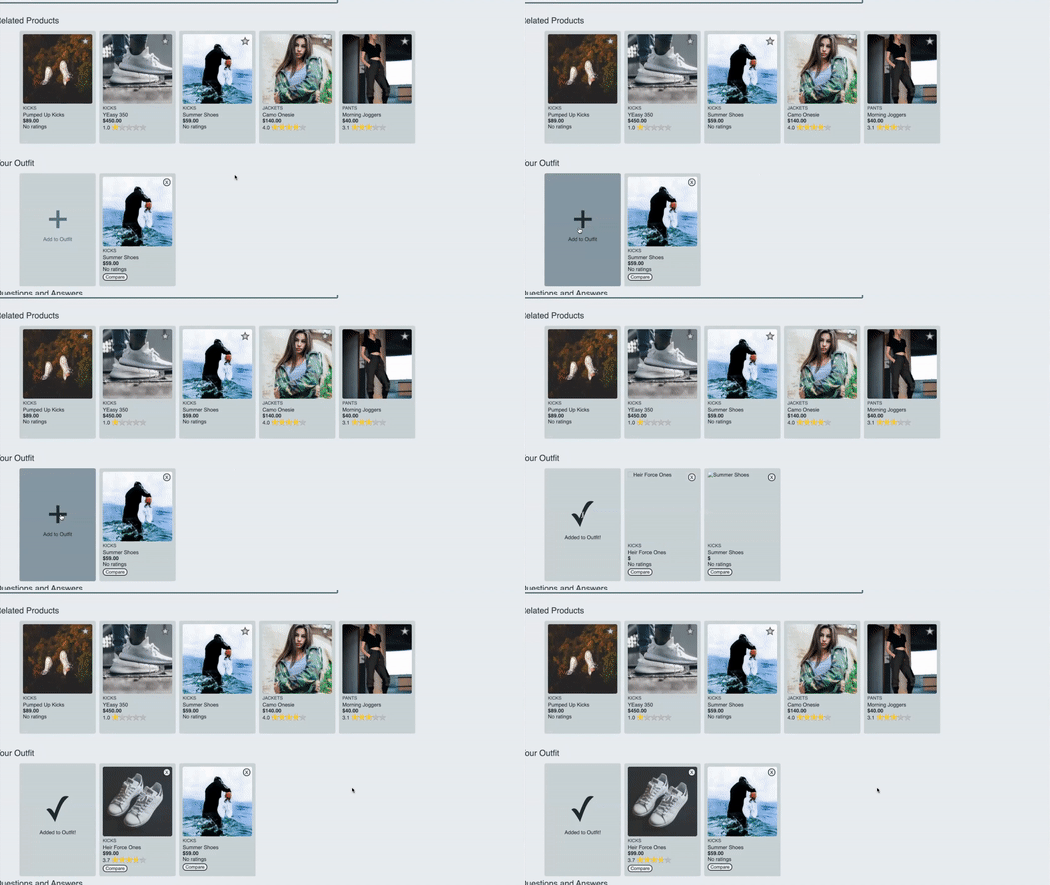
The user can add items to the outfit list either by clicking the heart icon (described above in the overview section), or by clicking the "Add to Outfit" card, which displays by default as the first card in the list. To remove items from the outfit, a user clicks on the X button positioned in the top right of the card.
Questions and answers posted by other users appear in this section. Here, the user can see a list of questions and an answer list for each.
A user can add an answer to an existing question by clicking on "Add Answer" next to it, or add a new question buy clicking "Add a Question" at the bottom of a list.
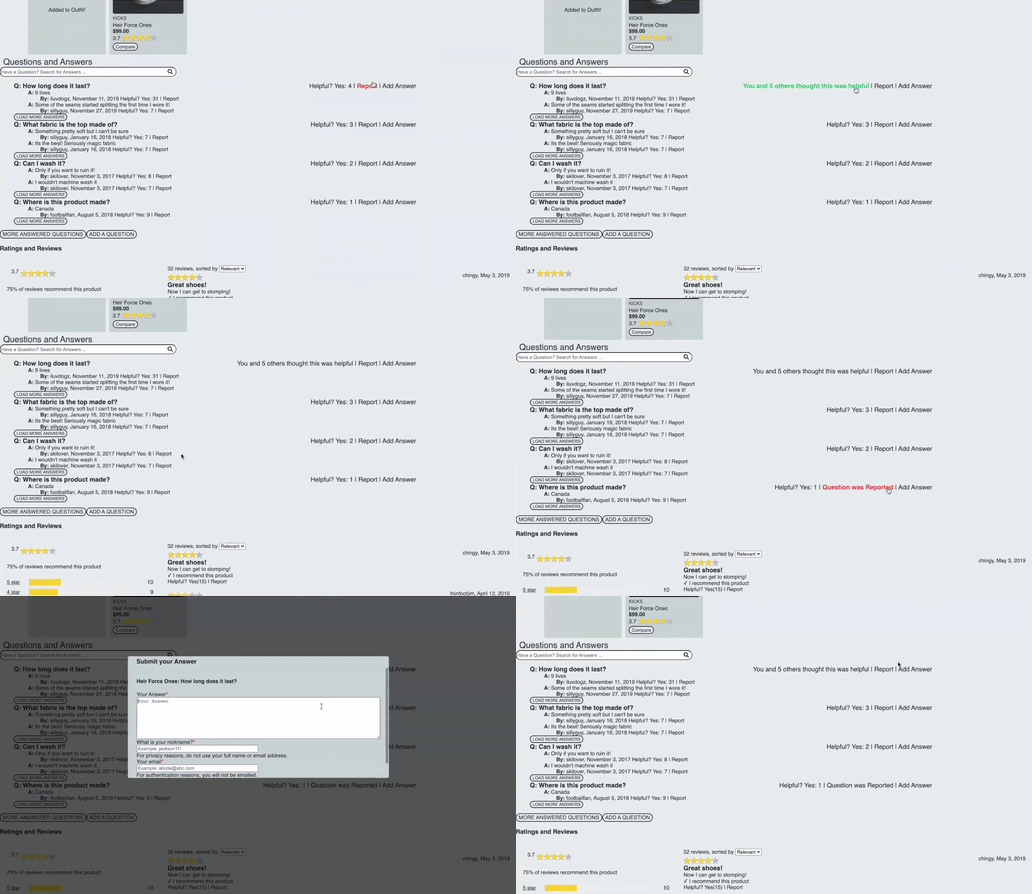
Inappropriate questions or answers can be reported by their respective report buttons, which marks them for review and no longer renders them to the page on page refresh. Each question and answer also has a helpful button that updates their respective helpfulness score by one when clicked.
By default, four questions with two questions each appears on page load. The button "More Answered Questions" switches the list to an infinite scroll that will fetch new questions as the user scrolls down until none remain for that product. The button "Load More Answers" under each answer list expands to show every posted answer to each question.
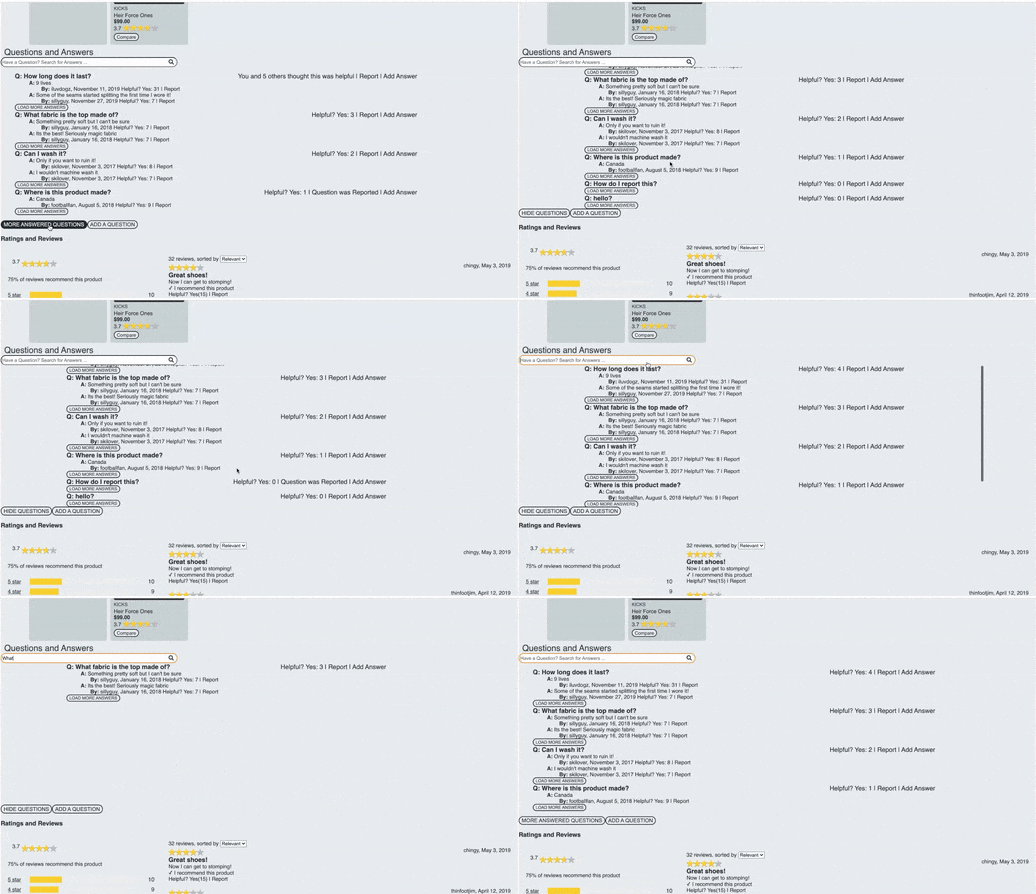
The search bar at the top of this section allows the user to search existing questions. The search activates once three or more characters have been typed. The list automatically switches to infinite scroll mode during the search so all questions have the potential to appear.
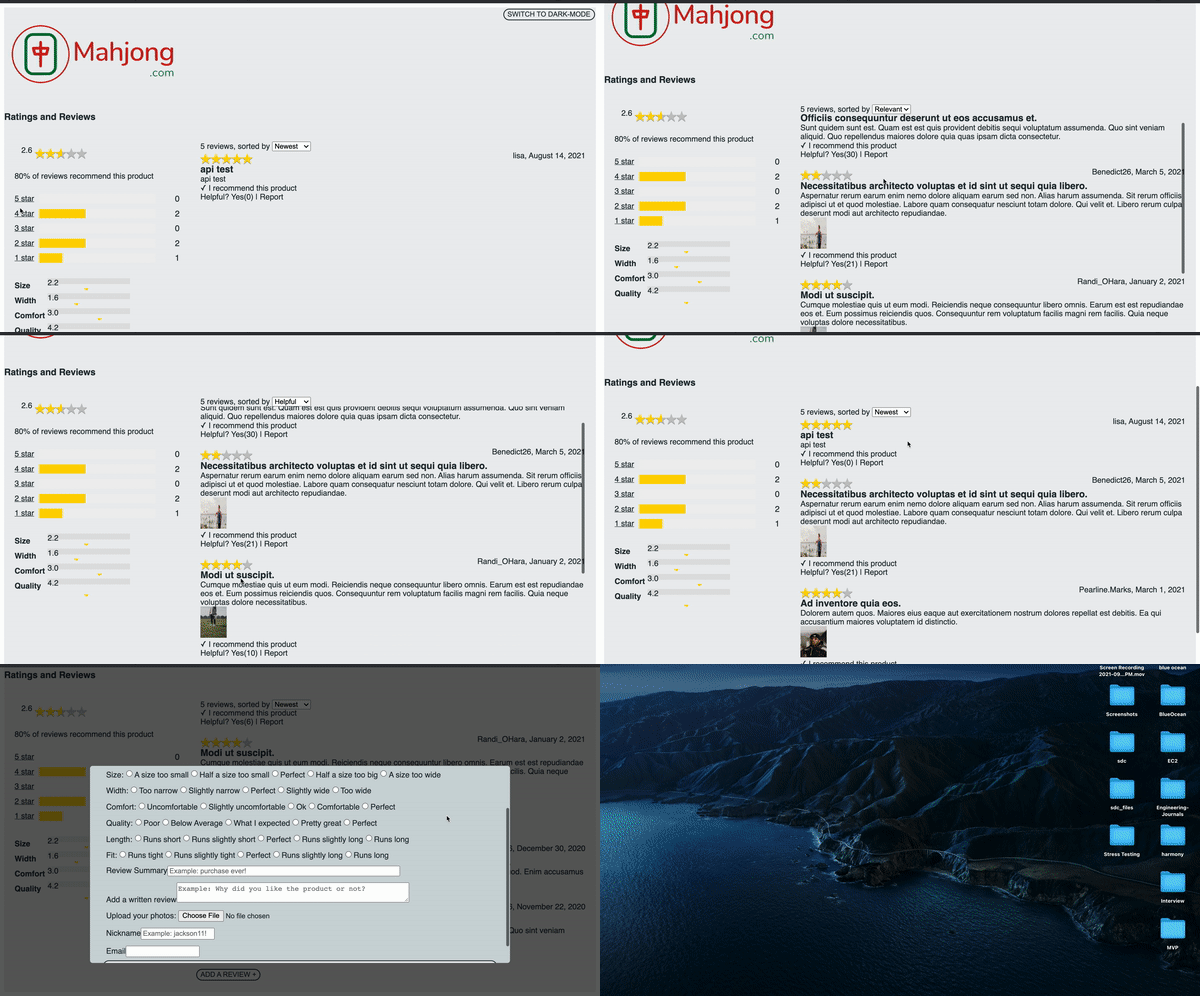
The ratings and reviews section allows the user to view and submit reviews for the given product.
The review list is the list of reviews available for the user to read. As the user scrolls down, it will display more reviews that have been submitted for the product. For each review, it displays the review details, including: rating, date of review, reviewer name, review summary, rating helpfulness, and so on.
The overall rating is displayed to the left of the review list. All the review ratings breaks down into 5 stars, 4 stars, 3 stars, 2 stars, and 1 star. For each breakdown star rating, it displays the count as well as the portion of the rating bar. Additionally, when the user clicks the label of the # star, the user can see all the unreported reviews with the filtering rating on the right.
The product breakdown, located under the ratings breakdown, displays ratings for each characteristic, such as fit, length, quality, and so on.
The user can add a review for the given product by clicking the "add new review" button located under the review list.
- React.js
- Express
- Node.js
- CSS
- Html
- Atelier API