See your Codex account limits from the macOS menu bar.
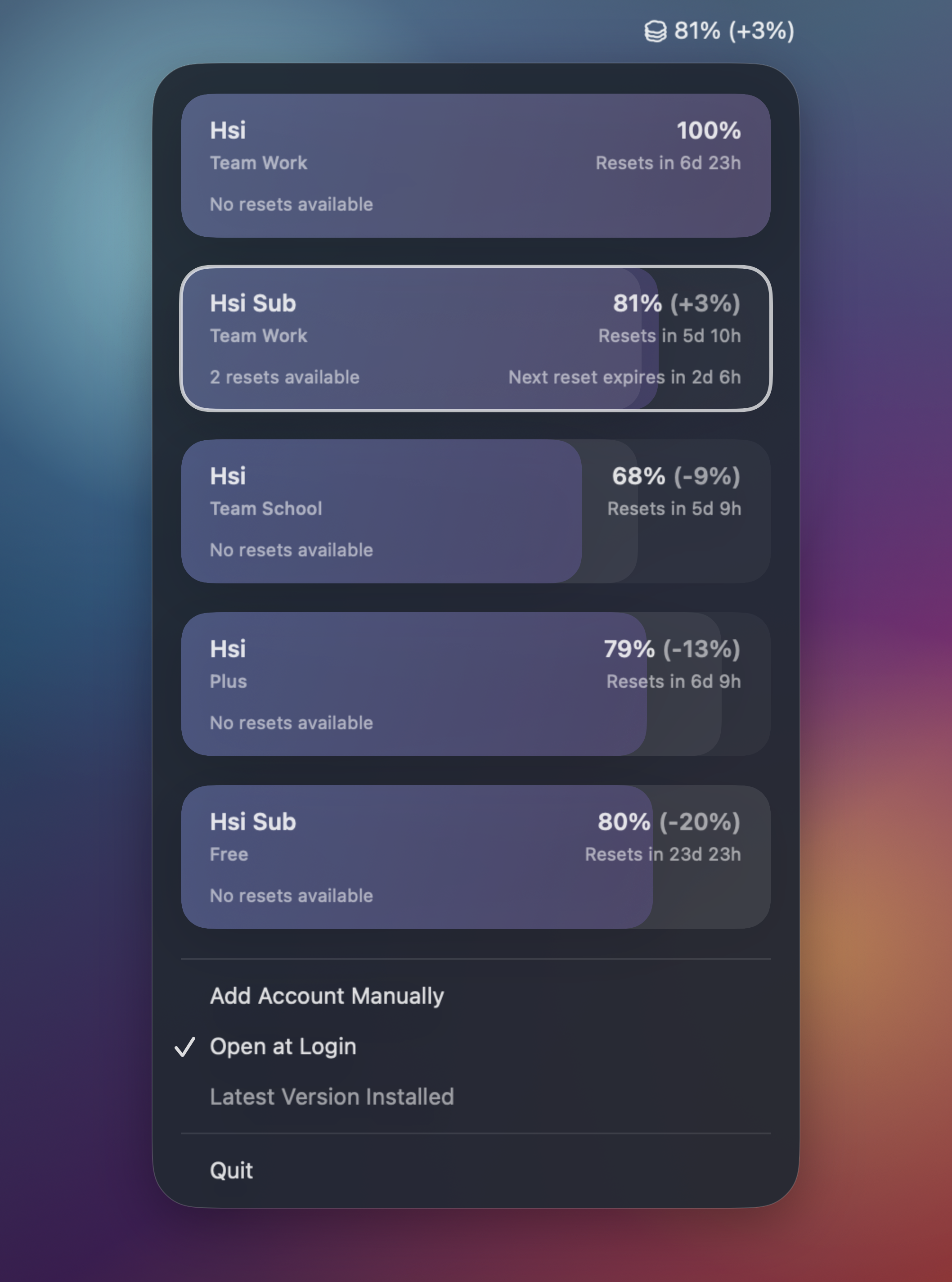
- Zero setup: Picks up local Codex app sessions automatically (you can also set it up manually with Codex CLI).
- Usage in your menu bar: Check your active account's remaining usage at a glance.
- Track all at once: See usage and reset info across accounts and workspace in one panel.
- Smart planing: Accounts are ranked by remaining headroom so you can pick the right account to burn.
- Auto updates: Comux checks GitHub Releases daily, even while it stays open, and can install updates from the menu bar.
- Privacy first: Comux supports custom display names and stores account metadata locally in
~/.comux.
Install with Homebrew:
brew install --cask Hsiii/tap/comuxOr download from GitHub Releases.
Requirements:
- macOS 14 Sonoma or newer
- A local Codex install with at least one signed-in account
- Keep Codex signed in locally; Comux reads existing Codex session state.
- Open Comux from Applications and use the menu bar item to review accounts and workspaces.
- Optional: rename accounts in Comux when you want private or easier-to-scan labels.
Comux uses your existing local Codex session state to refresh usage. Account metadata and custom display names are stored locally in ~/.comux; Comux does not require a separate hosted account.
If Comux does not show an account, open Codex and confirm that account is signed in locally, then reopen the Comux menu. If Homebrew installs an older version, use Check for Updates from the Comux menu or run brew update and then brew upgrade --cask Hsiii/tap/comux.
swift run comuxShort-horizon limit status is hidden by default while Codex does not enforce the 5-hour limit. To exercise short-window status and locking locally, launch Comux with COMUX_SUPPORTS_FIVE_HOUR_LIMIT=true.
sudo xcode-select -s /Applications/Xcode.app/Contents/Developer
brew install xcodegen
make dmg
Local builds are ad-hoc signed unless COMUX_CODE_SIGN_IDENTITY is set to a Developer ID Application identity.
make buildmake dmg